
Smart Defaults: default values and field rules for Jira
Pre-fill new Jira issues with default values and templates, and make fields required or hidden, without code. Coming to Jira Cloud through the Atlassian Marketplace.
What is Smart Defaults?
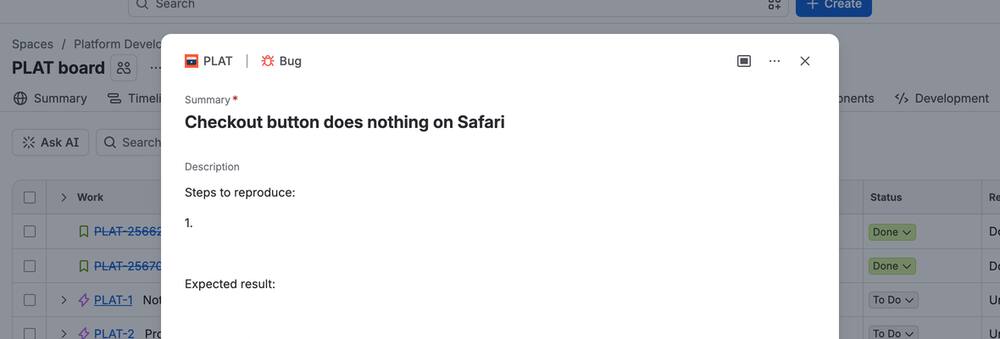
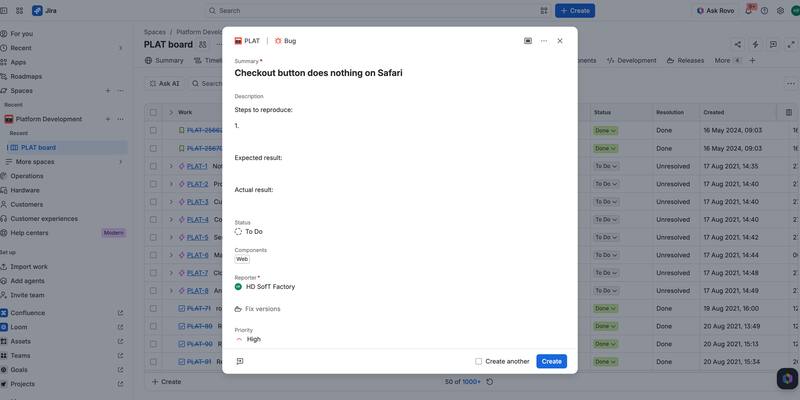
Smart Defaults fills in and controls fields on the Jira create form, so new issues start complete. You choose the projects and issue types, and the app sets default values, description templates and required, hidden or read-only fields.
Issues created outside the form also get the default values right after they are created, for example issues from email, import, automation or the REST API. Sub-tasks copy values from their parent.
No data leaves Atlassian. The app runs on Atlassian’s Forge platform, has no external connections and keeps its rules in Forge storage in your Jira site.
How do I set default values in Jira?
After installing, go to Jira settings → Apps → Manage apps, open Smart Defaults and select Configure. Only Jira administrators can change the rules. A new installation has no rules, so nothing changes in Jira until you create one.
- Choose a goal: set default values, add a description template, make fields required, change a field based on another field, or copy values from the parent to sub-tasks.
- Choose where it applies: all projects or selected projects, and all issue types or selected issue types.
- Fill in the details, for example the default priority or the template text.
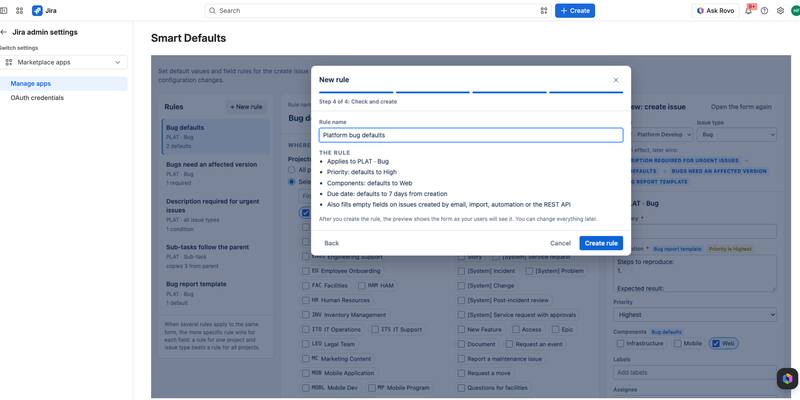
- Check and create. The summary shows what the rule does, and you can change everything later.
Features
Default values and templates
Priority, components, labels, assignee, due date, versions and description templates are filled in when the form opens. Users can still change them unless you make a field read-only.
Required, hidden and read-only fields
Make fields required, hidden or read-only for the projects and issue types you choose.
Conditions
Require, hide or show a field when another field has a certain value, for example require a description when the priority is Highest. Conditions can watch Priority, Components and versions.
Sub-tasks follow the parent
Sub-tasks copy priority, components, fix versions, labels, assignee and due date from the parent, also when created directly from the parent issue.
Issues created outside the form
Issues created by email, import, automation or the REST API get the default values in empty fields right after they are created.
Guided setup and live preview
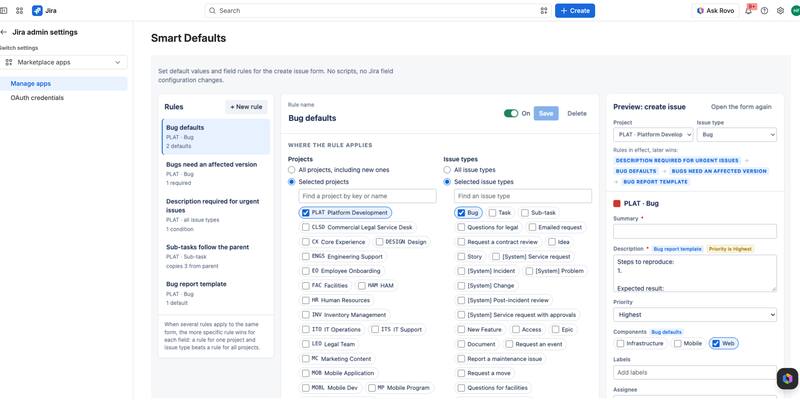
Pick a goal and the app guides you through the setup. The preview shows the create form as your users will see it, including which rule set each value.
More specific rules win
Set defaults for all projects and add exceptions for one project. For each field, the most specific rule decides.
Data stays in Atlassian
No external connections. The rules are kept in Forge storage and follow your site’s data residency location.
Pricing
Up to 10 users
Free.
100 users
USD 450 a year.
Atlassian handles the billing. Prices for other user tiers are shown on the Atlassian Marketplace once the app is published. Customers on the free tier get the same support as paying customers.
Screenshots
Frequently asked questions
How much does Smart Defaults cost?
It is free for up to 10 users. For 100 users the price is USD 450 a year. Atlassian handles the billing.
Does Smart Defaults work on issues created by email or automation?
Yes, when the setting is switched on. Issues created by email, import, automation or the REST API get the default values in empty fields right after they are created. Required, hidden and read-only fields only apply on the form.
Can I make a field required based on another field?
Yes. For example, the condition “when the priority is Highest, the description is required” is checked every time the watched field changes. Conditions can watch Priority, Components and versions.
Which fields does Smart Defaults support?
Summary, Description, Priority, Components, Labels, Assignee, Due date, Affects versions and Fix versions. Custom fields are not supported yet, and Jira doesn’t let apps change the Environment field.
Does any data leave Atlassian?
No. The app runs on Atlassian’s Forge platform and has no external connections. Rules are stored in Forge storage in your Jira site.
Why does the form show Jira’s own values for a moment?
Jira loads apps on the create form after the form has opened, so the rules are applied one to four seconds after it opens.
Who can change the rules?
Only Jira administrators. The rules are set in Jira settings → Apps → Manage apps → Smart Defaults → Configure.
Does Smart Defaults work on the Jira Service Management customer portal?
No. The customer portal is not supported.
Support and terms
Support: support@hdsoft.fi, Monday to Friday 9:00–17:00 Finnish time, in English and Finnish. Response times and security reports are on the support page.
Documentation: how to set up and use Smart Defaults.
Privacy: privacy policy.
Terms and other apps: Apps for Jira and Confluence.
Coming to the Atlassian Marketplace
Smart Defaults is coming to Jira Cloud through the Atlassian Marketplace. The documentation already shows how it works.
Atlassian and Jira are trademarks of Atlassian. The app is made and supported by HD SofT.